Data Collections
Data collections are the primary way data is organized and accessed on Planet Insights Platform. You can access and manage your data collections through the Data Collections app. Depending on the source and format of your imagery, you will interact with one of the following collection types: Planet, Public Data, BYOC, ZARR, or Planet Sandbox Data.
The data collections functionality is powered by the BYOC API. To move your workflow from the user interface to a programmatic environment, use the BYOC API to manage your data collections and tiles.
Planet
Planet data collections are the primary containers for imagery you acquire through Planet. When you order imagery or subscribe to an area of interest, the data is delivered into Planet data collections. Whether you are ordering archival data or setting up a continuous feed, the data is delivered directly into a collection for immediate use.
Delivering Planet Data to a Data Collection
You can deliver data to a data collection using the user interface or programmatically via API:
- Order Imagery user interface or Orders API: Select a data collection as the delivery destination to store data in managed cloud buckets for access through the Browser or APIs.
- Create Subscriptions user interface or Subscriptions API: Set up a subscription for a specific Area of Interest (AOI) and link it to an existing collection or have a new one created automatically to house the incoming data.
When ordering or subscribing, you can specify an existing collection ID or have a new data collection created automatically. Data collections are configured for specific asset types (for example, 4-band vs 8-band PlanetScope), so ensure your imagery assets match the collection configuration.
Supported Products in Data Collections
The following table shows which Planet imagery products can be delivered to data collections:
| Product | Delivery to Data Collection |
|---|---|
| PlanetScope | ✓ |
| SkySat | ✓ |
| Planetary Variables | ✓ |
| Analysis-Ready PlanetScope (ARPS) | ✓ |
| Mosaics | ✗ |
| Pelican | ✓ |
| RapidEye | ✗ |
| Tanager | ✗ |
Supported Assets
When ordering PlanetScope or SkySat imagery, you can select which assets to deliver to your data collection. Analysis-Ready PlanetScope and Planetary Variables come with predefined assets and do not require asset selection.
| Product | Supported in Data Collections | Not Supported in Data Collections |
|---|---|---|
| PlanetScope | All orthorectified raster assets (see PSScene assets) | basic_analytic_4b, basic_analytic_8b |
| SkySat | All orthorectified raster assets (see SkySatCollect and SkySatScene) | basic_l1a_panchromatic_dn, basic_analytic, basic_panchromatic |
All orthorectified raster assets have predefined configurations and can be delivered to data collections. These configurations enable you to immediately visualize your data in the Browser without additional setup.
Public Data
Planet also provides access to a curated set of public Earth observation datasets from Copernicus, USGS, and NASA through Planet Insights Platform.
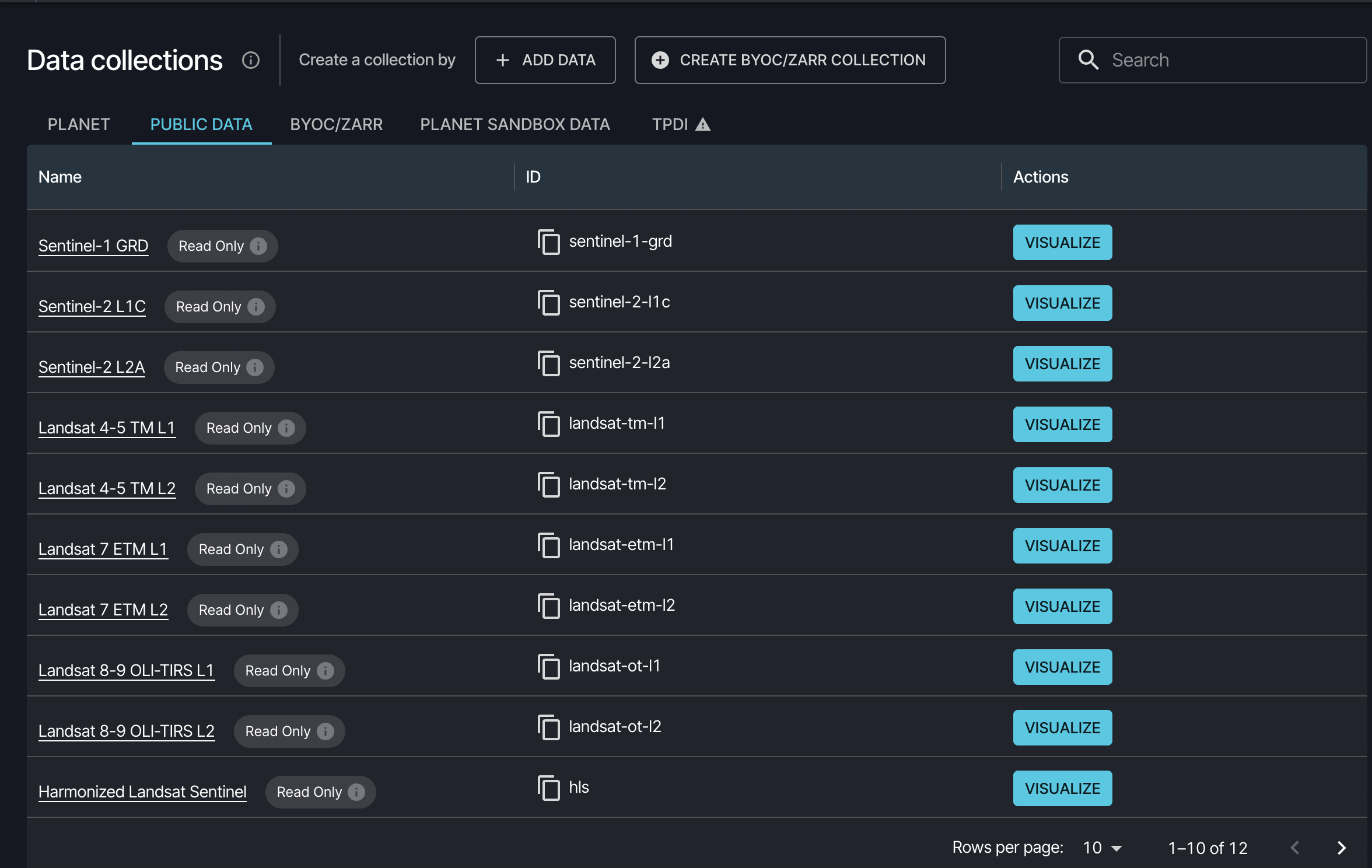
See Public Data for the full catalog of available datasets and technical specifications.
BYOC (Bring Your Own COG)
BYOC collections enable you to access your own Cloud Optimized GeoTIFF (COG) data stored in your storage bucket and use it just like Planet data collections or Public data collections. This allows you to leverage Planet Insights Platform visualization and API capabilities without moving your data out of your own infrastructure.
Before creating a BYOC collection, you need to configure your storage bucket to allow Planet Insights Platform access. See AWS Bucket Settings for configuration details.
To create a BYOC data collection:
Navigate to Data Collections and click CREATE BYOC/ZARR COLLECTION.
Name your new data collection.
From the dropdown menu, choose the location of your bucket.
Insert the name of your storage bucket.
Confirm by clicking the Save collection button.
After creating your data collection, you can add tiles to it by navigating to the Tiles tab and clicking + Add tile. Enter the path name. If left empty, files in the root of the bucket will be selected. The ingestion status will be indicated in the Status column.
See Bring Your Own COG API for more information on API-based workflows and requirements.
ZARR
Zarr collections enable you to access your own Zarr data stored in your storage bucket. This format is optimized for large-scale, multidimensional datasets, making it the preferred choice for time-series analysis and climate modeling.
See Zarr Import API for more information.
Planet Sandbox Data
Planet Sandbox Data is a series of Data Collections that allows you to test Planet datasets. The data is made available under a CC-BY-NC license and is available for users with a paid subscription or trial accounts.
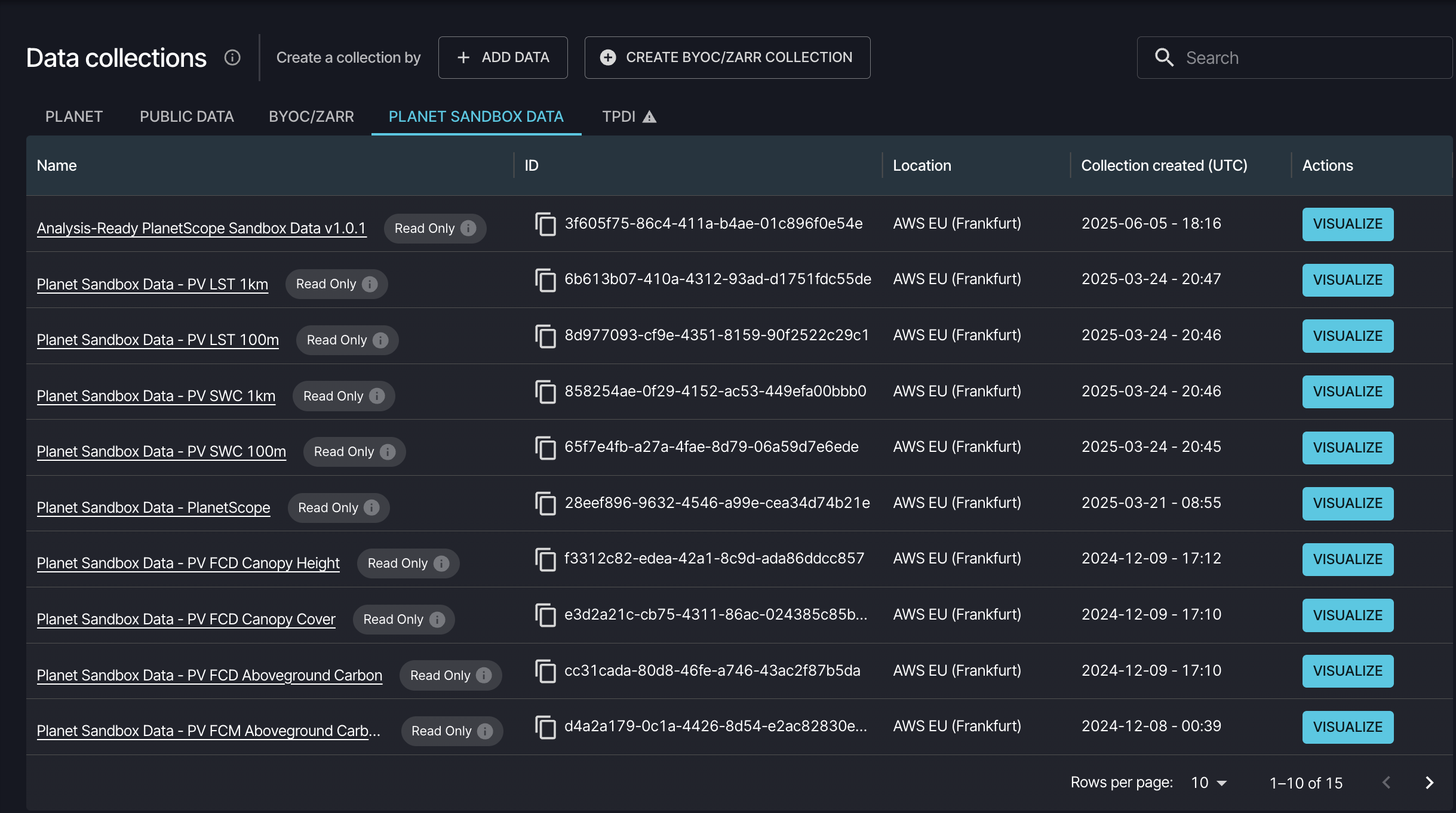
See Planet Sandbox Data for more information.
Visualizing Data from Data Collections
Data stored in data collections can be visualized and analyzed in the Browser. To visualize data, you need a configuration - a set of layers that defines which data collection to use and how to render it (for example, True Color, False Color, NDVI, etc.). You can use predefined configurations, or create your own by defining custom band combinations and visualization parameters.
Planet Sandbox Data and Public Data collections come with configurations ready to use. For Planet data collections, configurations are created automatically if you opted in during the ordering or subscription process. For BYOC and ZARR collections, you need to create a configuration manually.
To visualize your data, click the VISUALIZE button in the Data Collections app to open the collection in the Browser. Learn more about analyzing imagery in the Browser.
Downloading from Data Collections
Whether you are working with the user interface or integrating with our API, you can download your data directly from data collections.
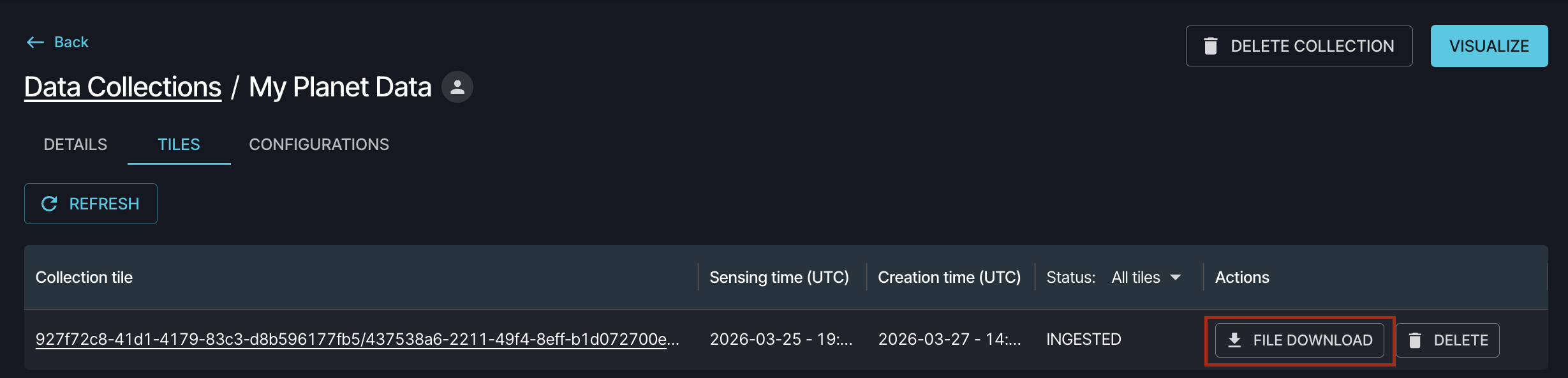
You can download individual files one at a time. Files are provided in COG (Cloud Optimized GeoTIFF) format. Downloads are charged according to our Monitoring Credits model for egress.
For programmatic access, see the Bring Your Own COG API Reference for details on listing and downloading files from collection tiles.
You can download data from both collections you own and collections that have been shared with you. For shared collections, the BYOC API provides the same listing and download capabilities just like for the collections you own.
Sharing Data Collections
All new data collections are protected by default, meaning they are only accessible to your user account. The Protected Collections feature gives you the option to share your data collection with specific users, giving you better control over who can access your data.
Sharing a Collection
Navigate to Data Collections.
Each protected data collection will display a share icon in the Actions column.
To share a data collection with other users, click the SHARE button.
Click on the Add button.
To share a data collection with a single account, paste the account ID of the user you wish to share with in the Account ID field and optionally add any notes (for example, specific account's name). As the account IDs are opaque, notes are designed to help maintain control over data and keep track of access.
To share a data collection with multiple accounts, click on the Or share with multiple accounts option, where you can paste a list of account IDs or import the list from a file.
Click the Save icon to confirm.
Once you have finished managing the list of users, click Close.
You maintain the flexibility to add or remove users from the list of authorized users anytime. However, revoking access to protected data collections will make the data inaccessible to users. This action invalidates any configurations associated with protected data collections for users who no longer have access.
To remove access to a protected data collection for a user, click on the share icon inline with the data collection.
Click the delete button next to the user's name whose access you want to remove.
Once you have removed the user's access, click Close to confirm.
Accessing Shared Collections
Any data collection shared with you will appear automatically in your Data Collections list. You can filter collections using the Owned by column, choosing between Owned by me, Shared with me, or Any.
All shared collections are marked with a Read-Only chip. You can use a shared collection to create configurations for visualization and analysis, and download data via the BYOC API just like from the collections you own.