Configurations
What is a Configuration?
A configuration is a set of visualization layers that define how data from your data collections should be displayed in the Browser and OGC services, making it easy to analyze imagery and access it through OGC-compliant applications.
A configuration consists of:
- One or more visualization layers: Each layer defines how to render data (for example, True Color, NDVI, etc.)
- Data collections: The source of imagery (for example, PlanetScope, Sentinel-2, etc.). See Data Collections.
Configurations are required to visualize and analyze your data. Once you have a configuration, you can use it to:
- Visualize and analyze data in the Browser
- Stream imagery to your applications using OGC services
- Access and visualize data through our GIS integrations
Working with Configurations
When you order or subscribe to Planet data and deliver it to a data collection, Planet Insights Platform can create a configuration for you with common visualization layers (True Color, NDVI, etc.), enabling you to immediately visualize and analyze your data.
Learn more about automatic configuration creation when ordering to a data collection or subscribing and delivering to a data collection.
You can also create your own configurations to:
- Define your own band combinations and visualization parameters
- Create custom indices beyond the standard offerings
- Apply specialized colormaps and rendering styles
Whether created automatically or manually, you have complete control to modify your configurations - add layers, remove layers, change evalscripts, etc.
Creating a Configuration
To create a new configuration:
Navigate to Configurations.
Click on + Create new configuration.
Provide a name for your configuration.
Choose a data collection.
Add at least one visualization layer. You can use layers that were automatically created for you or create your own.
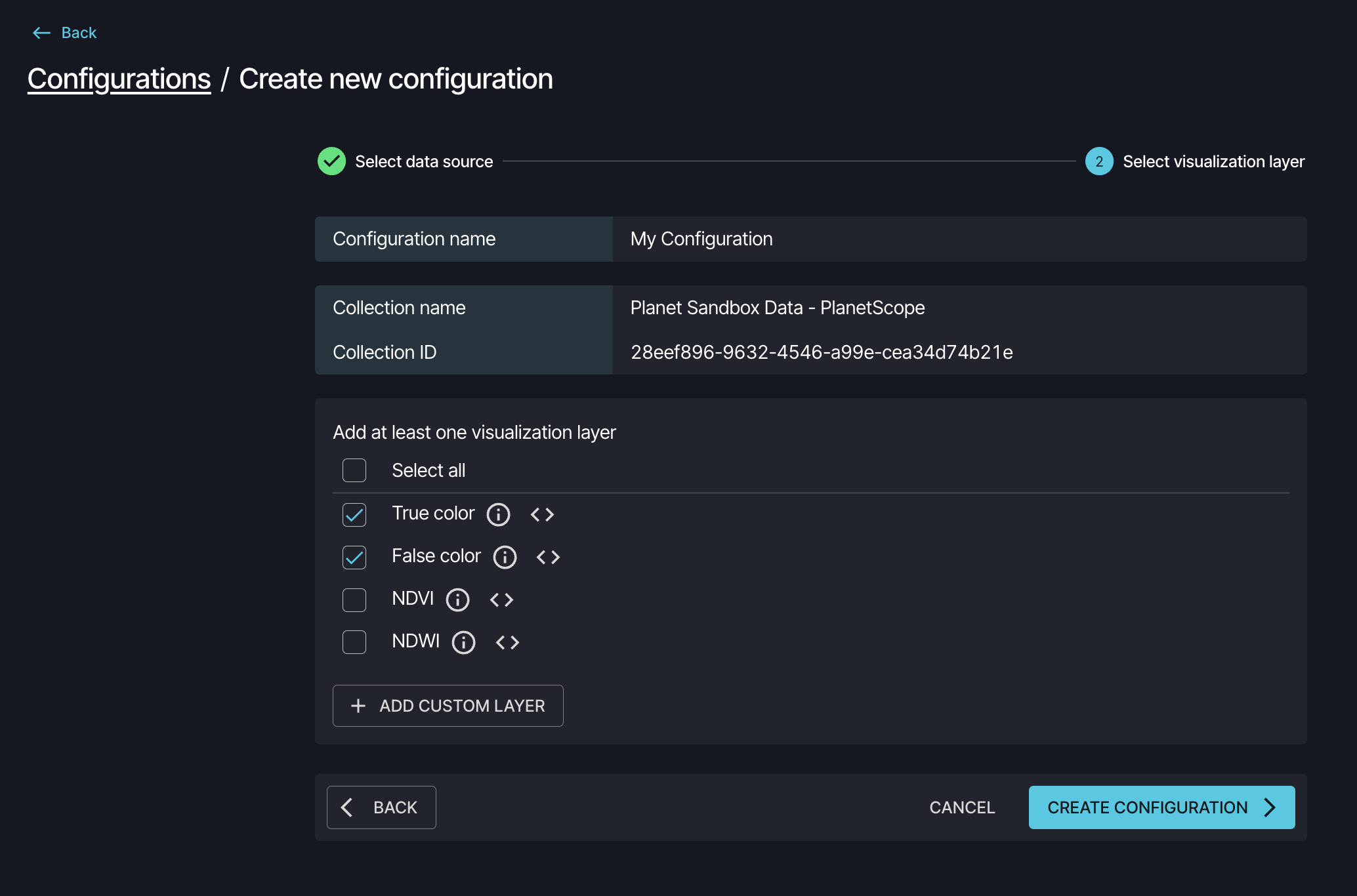
Adding a Custom Layer
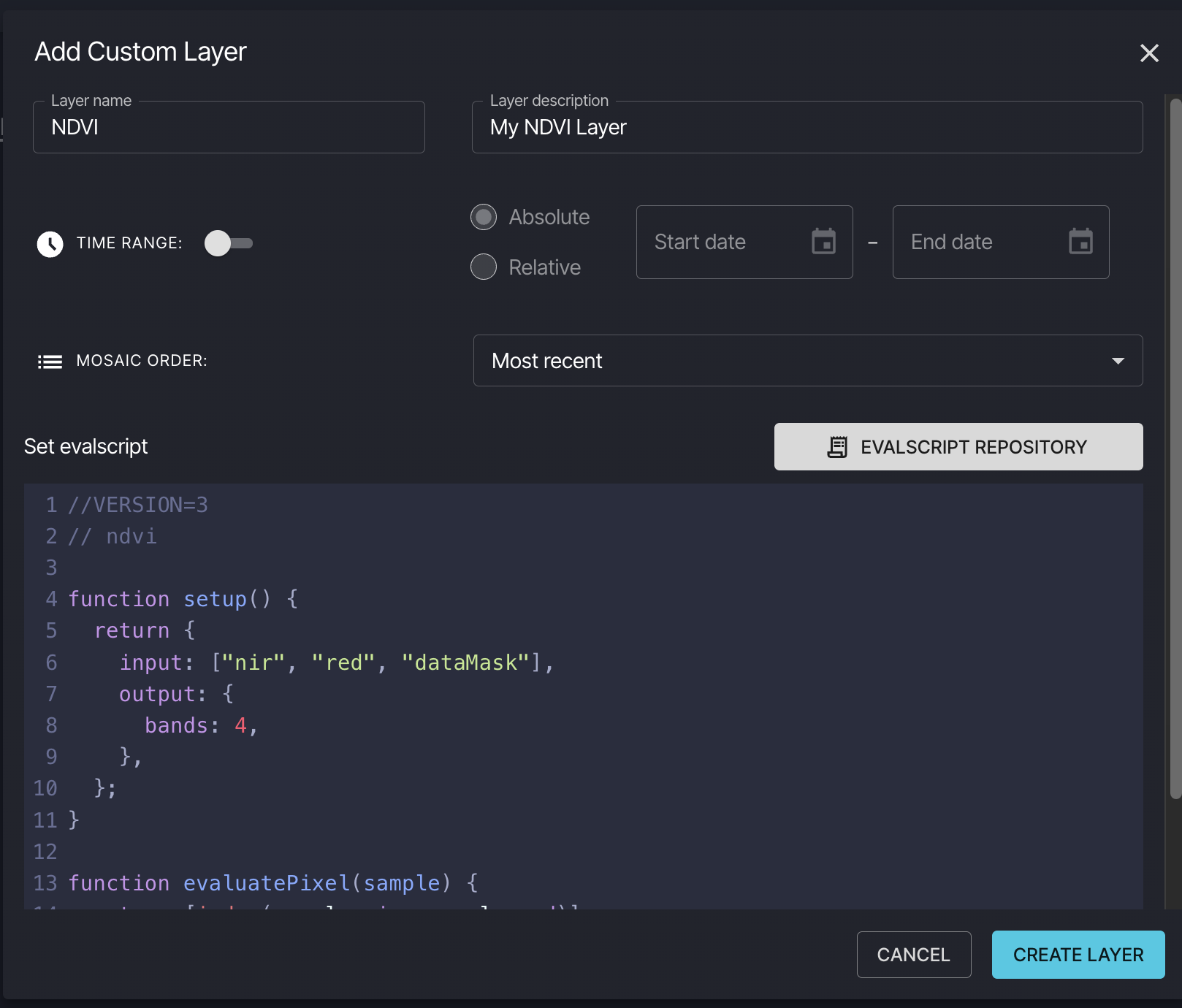
Each custom layer in a configuration requires:
- Layer name (for example, True Color, NDVI)
- Evalscript: Define how the data should be processed and visualized (see Evalscripts in Configurations)
You can also set additional parameters such as layer description, time range, and mosaic order to further control how the layer behaves.
You can add multiple custom layers to a single configuration, each with different visualization logic.
Evalscripts in Configurations
Evalscripts are JavaScript code blocks that define how to process and visualize satellite data. Every visualization layer uses an evalscript - pre-built layers come with evalscripts, while user-defined layers let you define your own.
Here is a simple example of a True Color visualization:
//VERSION=3
function setup() {
  return {
    input: ['Red', 'Green', 'Blue'],
    output: { bands: 3 },
  };
}

function evaluatePixel(sample) {
  return [sample.Red, sample.Green, sample.Blue];
}
For detailed information about evalscripts, including examples, functions, and advanced features, see the Evalscripts documentation.
Using Configurations
Browser
Configurations are the starting point for visualizing data in the Browser. Select a configuration, choose which visualization layers to display, and analyze your imagery over your area and time of interest.
Learn more about analyzing imagery in Browser.
OGC Services
Configurations enable you to stream imagery through OGC services, which support standards including WMS, WMTS, WCS, and WFS.
To use a configuration with OGC services:
Create or select a configuration with the layers you need.
Use the configuration ID in your OGC requests (see Configuration Instance and Authentication).
Reference specific layers within the configuration.
OGC services allow you to integrate satellite data into your applications and workflows without downloading large datasets.
GIS Integrations
You can access and visualize configurations through various GIS integrations. For QGIS users, the Planet QGIS Plugin provides dedicated integration. Other GIS applications can access configurations via OGC services.
Managing Configurations
Viewing Configurations
You can view all available configurations at Configurations.
Planet Sandbox Data and Public Data come with predefined configurations that are marked as Read Only and cannot be modified, deleted, or streamed, but you can clone them to create your own editable copy.
Click on a configuration name to view and edit its details.
Editing a Configuration
To edit a configuration, click on its name in the list. This opens the configuration details page.
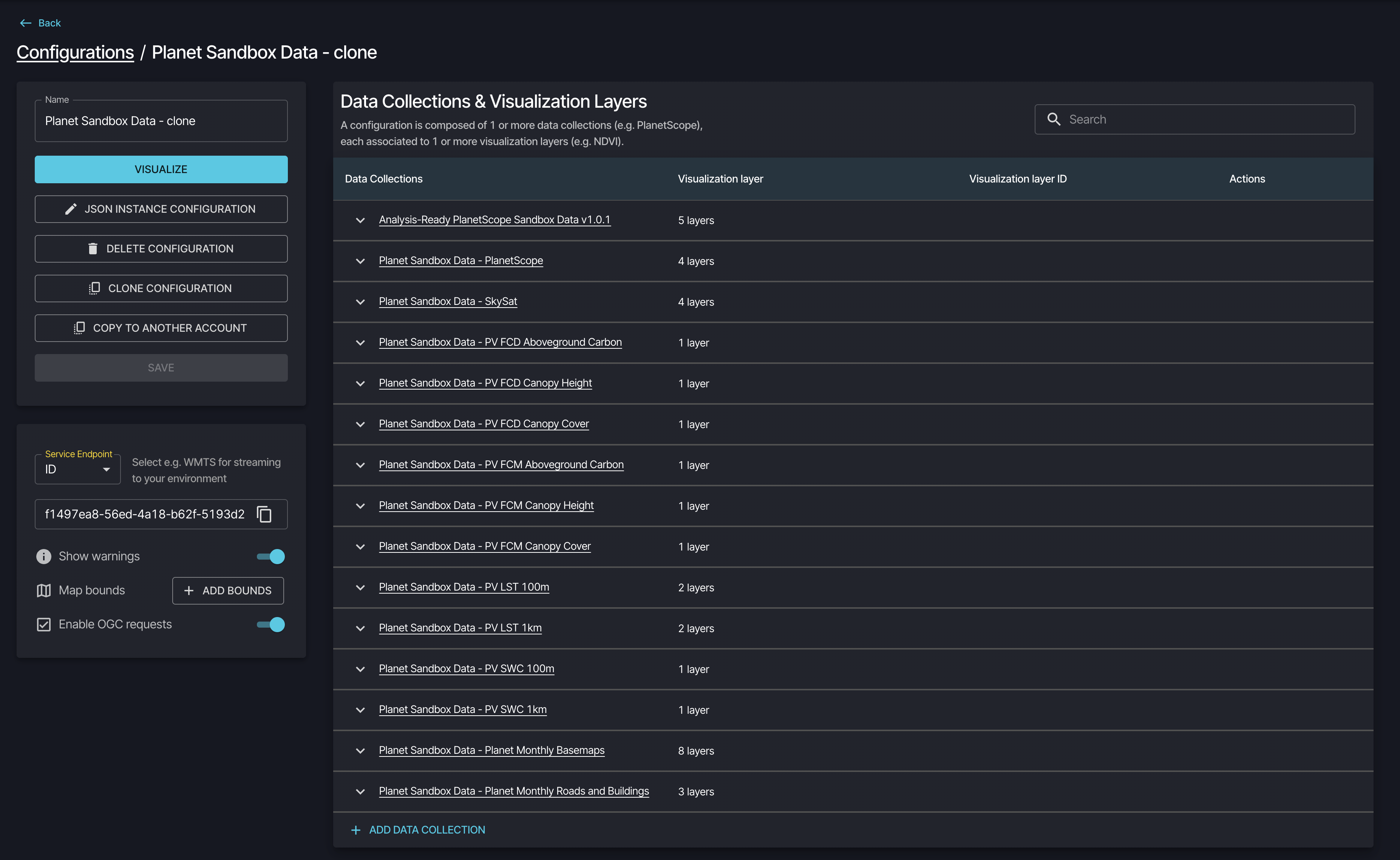
The Configuration ID is located in the lower left panel of the configuration details. This unique identifier is required for OGC services and API requests.
You can modify the following settings:
Basic settings:
- Edit the configuration name
- Add or remove data collections
- Add or remove visualization layers within each data collection
Advanced settings:
- Enable OGC requests: Control whether this configuration is accessible via OGC services. Keep this enabled if you plan to stream data to external applications.
- JSON Instance Configuration: Advanced users can view and edit the raw JSON configuration directly.
Click SAVE to apply your changes.
Cloning and Sharing Configurations
You can duplicate or share configurations using these options:
- CLONE: Creates a copy within your account that you can modify independently
- COPY TO ANOTHER ACCOUNT: Copies the configuration to another user's account by entering their account ID
Clone configurations to create variations, customize and stream read-only configurations. You can share the configuration ID with team members for use in API requests and applications.
Note that OGC usage by anyone using your configuration ID will consume Monitoring Credits from your account.
Best Practices
- Use descriptive names: Name your configurations and layers clearly to make them easy to find
- Start with examples: Use evalscript examples from the Evalscripts documentation and customize them for your needs
- Keep configurations focused: Create separate configurations for different use cases rather than adding too many layers to one configuration
Additional Resources
Learn how to create and manage configurations and use the Request Builder for API development on the Planet Insights Platform.
Explore how to create and customize scripts for advanced data analysis on the Planet Insights Platform.