Batch Processing API
The Batch Processing API is only available for users on enterprise plans. If you do not have an enterprise plan, and would like to try it out, contact us or upgrade.
The Batch Processing API enables you to request data for large areas and longer time periods for any supported collection, including BYOC (Bring Your Own COG). It is typically more cost-effective when processing large amounts of data. For details, see Processing Units.
It is an asynchronous REST service, meaning data will not be returned immediately but delivered to your specified object storage instead.
Deployments
| Deployment | API endpoint | Region |
|---|---|---|
| AWS EU (Frankfurt) | https://services.sentinel-hub.com/batch/v2 | eu-central-1 |
| AWS US (Oregon) | https://services-uswest2.sentinel-hub.com/batch/v2 | us-west-2 |
Data Sources Restrictions
All data sources must be from the same deployment where the request is made.
Workflow
The Batch V2 Processing API comes with the set of REST APIs which support the execution of various workflows. The diagram below shows all possible statuses of a batch task:
CREATEDANALYSINGANALYSIS_DONEPROCESSINGDONEFAILEDSTOPPED
and user's actions:
ANALYSESTARTSTOP
which trigger transitions among them.
The workflow starts when a user posts a new batch request. In this step the system:
- creates a new batch task with the status
CREATED - validates the user's input (except the evalscript)
- ensures the user's account has at least 1000 PUs
- uploads a JSON of the original request to the user's bucket
- and returns the overview of the created task
The user can then decide to either request an additional analysis of the task or start the processing. When an additional analysis is requested:
- the status of the task changes to
ANALYSING - the evalscript is validated
- a feature manifest file is uploaded to the user's bucket
- after the analysis is finished, the status of the task changes to
ANALYSIS_DONE
If the user chooses to directly start processing, the system still executes the analysis but when the analysis is done it automatically proceeds with processing. This is not explicitly shown in the diagram in order to keep it simple.
When the user starts the processing:
- the status of the task changes to
PROCESSING(this may take a while, depending on the load on the service) - the processing starts
- an execution database is periodically uploaded to the user's bucket
- spent processing units are billed periodically
When the processing is finished, the status of the task changes to DONE.
Stopping the Request
A task might be stopped for the following reasons:
- it is requested by a user (user action)
- user is out of processing units
- something is wrong with the processing of the task (for example, the system is not able to process the data)
A user may stop the request in following states: ANALYSING, ANALYSIS_DONE and PROCESSING.
However:
- if the status is
ANALYSING, the analysis will complete - if the status is
PROCESSING, all features (polygons) that have been processed or are being processed at that moment are charged for - user is not allowed to restart the task in the next 30 minutes
Input Features
BatchV2 API supports two ways of specifying the input features of your batch task:
- Pre-defined Tiling Grid
- User-defined GeoPackage
1. Tiling Grid
For more effective processing we divide the area of interest into tiles and process each tile separately.
While process API uses grids which come together with each datasource for processing of the data, the batch API uses one of the predefined tiling grids.
The tiling grids 0-2 are based on the Sentinel-2 tiling in WGS84/UTM projection with some adjustments:
- The width and height of tiles in the original Sentinel 2 grid is 100 km. The width and height of tiles in our grids are given in the table below.
- All redundant tiles (for example, fully overlapped tiles) are removed.
All available tiling grids can be requested with:
To run this example you need to first create an OAuth client as is explained here.
- Python SDK
url = "https://services.sentinel-hub.com/batch/v2/tilinggrids/"

response = oauth.request("GET", url)

response.json()
This returns the list of available grids and information about tile size and available resolutions for each grid. Currently, available grids are:
| name | id | tile size | resolutions | coverage | output CRS | download the grid [zip with shp file] * |
|---|---|---|---|---|---|---|
| S2 UTM 20km grid | 0 | 20040 m | 10 m, 20 m, 60 m | World, latitudes from -80.7° to 80.7° | UTM | UTM 20km grid |
| S2 UTM 10km grid | 1 | 10000 m | 10 m, 20 m | World, latitudes from -80.6° to 80.6° | UTM | UTM 10km grid |
| S2 UTM 100km grid | 2 | 100080 m | 60 m, 120 m, 240 m, 360 m | World, latitudes from -81° to 81° | UTM | UTM 100km grid |
| WGS84 1 degree grid | 3 | 1 ° | 0.0001°, 0.0002° | World, all latitudes | WGS84 | WGS84 1 degree grid |
| LAEA 100km grid | 6 | 100000 m | 40 m, 50 m, 100 m | Europe, including Turkey, Iceland, Svalbald, Azores, and Canary Islands | EPSG:3035 | LAEA 100km grid |
| LAEA 20km grid | 7 | 20000 m | 10 m, 20 m | Europe, including Turkey, Iceland, Svalbald, Azores, and Canary Islands | EPSG:3035 | LAEA 20km grid |
* The geometries of the tiles are reprojected to WGS84 for download. Because of this and other reasons the geometries of the output rasters may differ from the tile geometries provided here.
To use 20km grid with 60 m resolution, for example, specify id and resolution parameters of the tilingGrid
object when creating a new batch request (see an example
of full request) as:
- JSON
{
  ...
  "input": {
    "type" : "tiling-grid",
    "id": 0,
    "resolution": 60.0
  },
  ...
}
2. GeoPackage
In addition to the tiling grids, BatchV2 API now also support user-defined features through GeoPackages. This allows you to specify features of any shape as long as the underlying geometry is a POLYGON or MULTIPOLYGON in an EPSG compliant CRS listed here. The GeoPackage can also have multiple layers, offering more flexibility in specifying features in multiple CRS.
The GeoPackage must adhere to the GeoPackage spec and contain at least one feature table with any name.
The table must include a column that holds the geometry data.
This column can be named arbitrarily, but it must be listed as the geometry column in the gpkg_geometry_columns table.
The table schema should include the following columns:
| Column | Type | Example |
|---|---|---|
| id - primary key | INTEGER (UNIQUE) | 1000 |
| identifier | TEXT (UNIQUE) | FEATURE_NAME |
| geometry | POLYGON or MULTIPOLYGON | Feature geometry representation in GeoPackage WKB format |
| width | INTEGER | 1000 |
| height | INTEGER | 1000 |
| resolution | REAL | 0.005 |
Caveats
- You must specify either both width and height, or alternatively, specify resolution. If both values are provided, width and height will be used, and resolution will be ignored.
- The feature table must use a CRS that is EPSG compliant.
identifiervalues must not be null and unique across all feature tables.- There can be a maximum of 700.000 features in the GeoPackage.
- The feature output width and height cannot exceed 3500 by 3500 pixels or the equivalent in resolution.
Below you will find a list of example GeoPackages that serve as a showcase of how a GeoPackage file should be structured. Please note that these examples do not serve as production-ready GeoPackages and should only be used for testing purposes. If you would like to use these tiling grids for processing, use the equivalent tiling grid with the tiling grid input instead.
| name | id | output CRS | geopackage |
|---|---|---|---|
| UTM 20km grid | 0 | UTM | UTM 20km grid |
| UTM 10km grid | 1 | UTM | UTM 10km grid |
| UTM 100km grid | 2 | UTM | UTM 100km grid |
| WGS84 1 degree grid | 3 | WGS84 | WGS84 1 degree grid |
| LAEA 100km grid | 6 | EPSG:3035 | LAEA 100km grid |
| LAEA 20km grid | 7 | EPSG:3035 | LAEA 20km grid |
An example of a batch task with GeoPackage input is available here.
Area of Interest and PUs
When using either Tiling Grid or GeoPackage as input, the features that end up being processed are determined by the processRequest.input.bounds parameter specified in the request, called Area of Interest or AOI.
The way the AOI parameter is used and its effect depend on the input type used:
- Tiling grid: The AOI must be specified in the request. Only the tiles (features) that intersect with the AOI will be processed.
- GeoPackage: The AOI can optionally be omitted. If the AOI is omitted, all the features inside your GeoPackage will be processed. Conversely, if AOI is specified, only the features that intersect with the AOI will be processed.
Please note that in both cases of input types, if the feature is only partially covered by the AOI, the feature will be processed in its entirety.
You are only charged PUs for the features that are processed. If a feature does not intersect with the AOI, it will not be charged for.
Processing Results
The outputs of a batch task will be stored to your object storage in either:
- GeoTIFF (and JSON for metadata) or
- Zarr format
GeoTIFF Output Format
The GeoTIFF format will be used if your request includes the output.type parameter set to raster, along with other relevant parameters specified in the BatchV2 API reference.
An example of a batch task with GeoTIFF output is available here.
By default, the results will be organized in sub-folders where one sub-folder will be created for each feature. Each sub-folder might contain one or more images depending on how many outputs were defined in the evalscript of the request. For example:
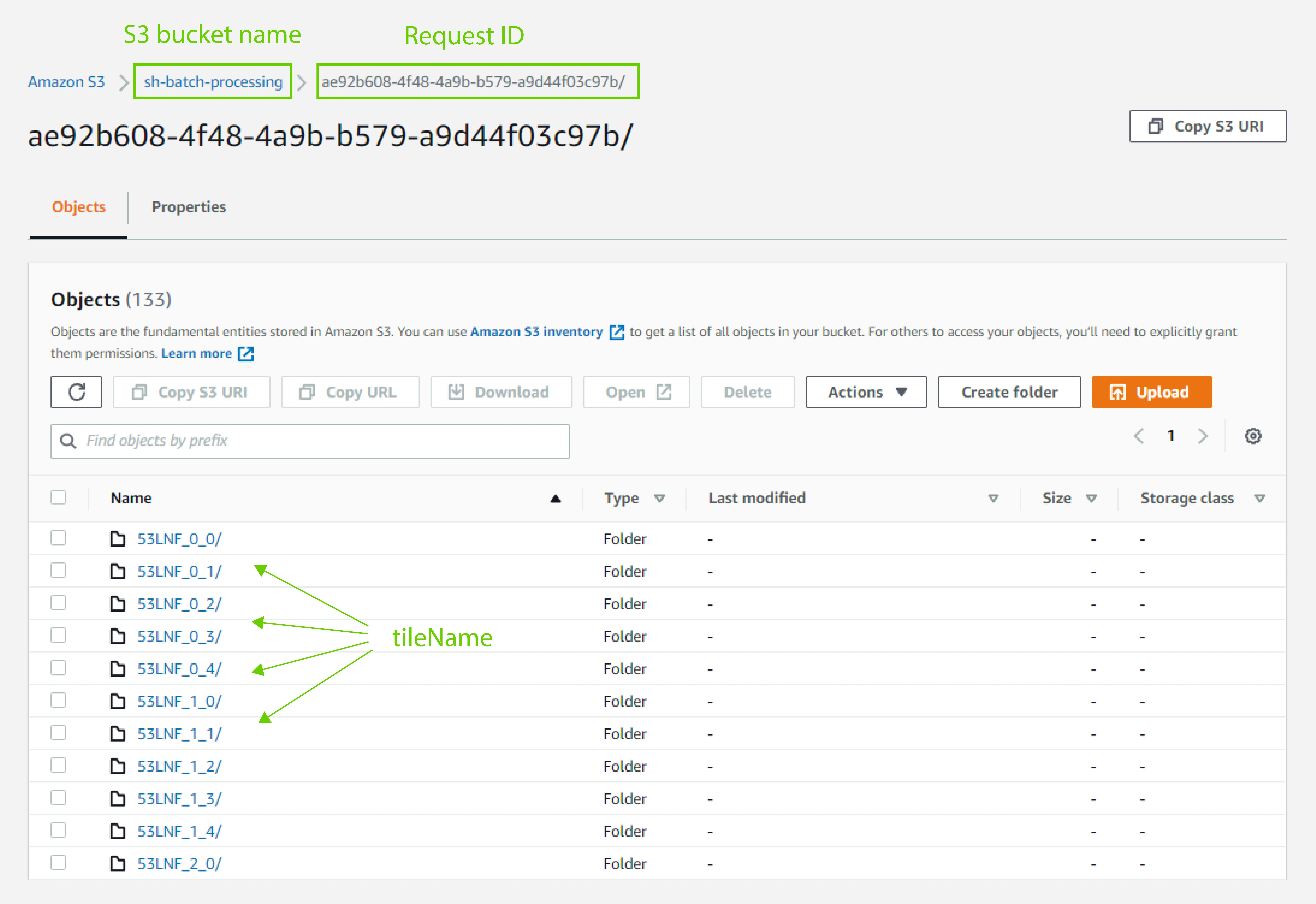
Batch Processing API Sub Folders
You can also customize the sub-folder structure and file naming as described in the delivery parameter
under output
in BatchV2 API reference.
You can choose to return your GeoTIFF files as Cloud Optimized GeoTIFF (COG), by setting the cogOutput parameter under output in your request as true.
Several advanced COG options can be selected as well - read about the parameter in BatchV2 API reference.
The output projection depends on the selected input, either tiling grid or GeoPackage:
- If the input is a tiling grid, the results of batch processing will be in the projection of the selected tiling grid. For UTM-based grids, each part of the AOI (Area of Interest) is delivered in the UTM zone with which it intersects. In other words, in case your AOI intersects with more UTM zones, the results will be delivered as tiles in different UTM zones (and thus different CRSs).
- If the input is a GeoPackage, the results will be in the same CRS as the input feature's CRS.
Zarr Output Format
The Zarr format will be used if your request includes the output.type parameter set to zarr, along with other
relevant parameters specified in
the BatchV2 API reference.
An example of a batch request with Zarr output is available here.
Your request must only have one band per output and the application/json format in responses is not supported.
The outputs of batch processing will be stored as a single Zarr group containing one data array for each evalscript output and multiple coordinate arrays.
The output will be stored in a subfolder named after the requestId that you pass to the API in the delivery URL parameter under output (for example, delivery.s3.url for AWS S3 or delivery.gs.url for Google Cloud Storage).
Ingesting Results into BYOC
Purpose
Enables automatic ingestion of processing results into a BYOC collection, allowing you to:
- Access data with Processing API, by using the collection ID
- Create a configuration with custom layers
- Make OGC requests to a configuration
- View data in EO Browser
Configuration
In order to enable this functionality, you need to specify either ID of an existing BYOC
collection (collectionId) or set createCollection = true.
- JSON
{
  ...
  "output": {
    ...
    "createCollection": true,
    "collectionId": "{byoc-collection-id}",
    ...
  },
  ...
}
If collectionId is provided, the existing collection will be used for data ingestion.
If createCollection is set to true and collectionId is not provided, a new BYOC collection will be
created automatically and the collection bands will be set according to the request output responses definitions.
Regardless of whether you specify an existing collection or request a new one, processed data will still be uploaded to your object storage bucket (S3 or Google Cloud Storage), where it will be available for download and analysis.
Important Restrictions
BYOC Ingestion Region and Cloud Provider Requirements
When using BYOC ingestion, the output storage must be in the same region AND same cloud provider as the API deployment you are using. Cross-region or cross-cloud delivery is not supported for BYOC ingestion.
Deployment-to-Storage Mapping:
| API Deployment | API Endpoint | Required Output Storage |
|---|---|---|
| AWS EU (Frankfurt) | https://services.sentinel-hub.com/batch/v2 | AWS S3 eu-central-1 |
| AWS US (Oregon) | https://services-uswest2.sentinel-hub.com/batch/v2 | AWS S3 us-west-2 |
Example: If you send your request to https://services.sentinel-hub.com/batch/v2 (AWS EU deployment) and want to ingest results into BYOC, you must use an S3 bucket in the eu-central-1 region. Using a bucket in us-west-2 or Google Cloud Storage will fail.
For general output delivery without BYOC ingestion, you can use any region or cloud provider. See Cross-Cloud and Cross-Region Support for details.
Requirements and Best Practices
When creating a new batch collection or using an existing one, be careful to:
- Make sure that
cogOutput=trueand that the output format isimage/tiff - If an existing BYOC collection is used, make sure that
identifierandsampleTypefrom the output definition(s) match the name and the type of the BYOC band(s). Single band and multi-band outputs are supported. - If multi-band output is used in the request, the additionally generated bands will be named using a numerical suffix in ascending order (for example, 2, ... 99). For example, if the
output: { id: "result", bands: 3 }is used in the evalscript setup function, the produced BYOC bands will be named:resultfor band 1,result2for band 2 andresult3for band 3. Make sure that no other output band has any of these automatically generated names, as this will throw an error during the analysis phase. Theoutput: [{ id: "result", bands: 3 },{ id: "result2", bands: 1 }]will throw an exception. - Keep sampleType in mind, as the values the evalscript returns when creating a collection will be the values available when making a request to access it.
Mandatory Bucket Settings
AWS S3 Bucket Policy
Regardless of the credentials provided in the request (IAM role or access keys), you must set an AWS S3 bucket policy to allow our services to access the data. For detailed instructions on how to configure your S3 bucket policy, please refer to the BYOC bucket settings documentation.
Google Cloud Storage Permissions
For Google Cloud Storage, ensure your service account has the required permissions: storage.objects.create, storage.objects.get, storage.objects.delete, and storage.objects.list. See Google Cloud Storage Configuration for more details.
Object Storage Configuration
The Batch Processing API requires access to object storage for reading input data (GeoPackage files) and storing processing results. We support two object storage providers:
- Amazon S3
- Google Cloud Storage (GCS)
Supported Use Cases
Object storage is used for:
- Reading GeoPackage input files (optional, if using GeoPackage input type)
- Uploading processing results (required)
- Uploading the original request JSON, feature manifest, and execution database
AWS S3 Configuration
The Batch Processing API supports two authentication methods for AWS S3. We recommend using the IAM Assume Role method for enhanced security and fine-grained access control.
Authentication Methods
Option 1: IAM Assume Role (Recommended)
The IAM Assume Role method provides better security by allowing temporary credentials and fine-grained access control without exposing long-term credentials.
To use this method, provide the ARN of an IAM role that has access to your S3 bucket:
{
  "output": {
    "delivery": {
      "s3": {
        "url": "s3://{bucket}/{key}",
        "iamRoleARN": "{IAM-role-ARN}"
      }
    }
  }
}
Setup Steps:
- Create an IAM Policy for S3 Access
Create a policy that grants the necessary permissions to your S3 bucket:
{
  "Version": "2012-10-17",
  "Statement": [
    {
      "Effect": "Allow",
      "Action": [
        "s3:GetObject",
        "s3:PutObject",
        "s3:DeleteObject",
        "s3:ListBucket"
      ],
      "Resource": ["arn:aws:s3:::{bucket}", "arn:aws:s3:::{bucket}/*"]
    }
  ]
}
- Create an IAM Role
- In the AWS IAM console, create a new role
- Choose "AWS account" as the trusted entity type
- Select "Another AWS account" and enter account ID:
614251495211 - Attach the policy created in step 1
- Note the Role ARN for use in your API requests
- Configure Trust Relationship (Optional but Recommended)
For additional security, modify the role's trust policy:
{
  "Version": "2012-10-17",
  "Statement": [
    {
      "Effect": "Allow",
      "Principal": {
        "AWS": "arn:aws:iam::614251495211:root"
      },
      "Action": "sts:AssumeRole",
      "Condition": {
        "StringEquals": {
          "sts:ExternalId": "{domain-account-id}"
        },
        "StringLike": {
          "sts:RoleSessionName": "sentinelhub"
        }
      }
    }
  ]
}
Replace {domain-account-id} with your domain account ID from the Dashboard.
Option 2: Access Key & Secret Key
Alternatively, you can provide AWS access credentials directly:
{
  "output": {
    "delivery": {
      "s3": {
        "url": "s3://{bucket}/{key}",
        "accessKey": "{access-key}",
        "secretAccessKey": "{secret-access-key}"
      }
    }
  }
}
The access key and secret must be linked to an IAM user with the following permissions on your S3 bucket:
s3:GetObjects3:PutObjects3:DeleteObjects3:ListBucket
To create access keys, see the AWS documentation on programmatic access.
S3 Bucket Policy for BYOC Ingestion
If you plan to use BYOC ingestion, you must also configure your S3 bucket policy to allow our services to access the data. For detailed instructions, refer to the BYOC bucket settings documentation.
Google Cloud Storage Configuration
Google Cloud Storage is supported for both input (GeoPackage files) and output delivery. Authentication requires a service account with base64-encoded credentials.
Preparing Credentials
- Download your service account credentials in JSON format (not P12)
- Encode them as a base64 string:
cat my_creds.json | base64
Using GCS for Input
To read a GeoPackage from Google Cloud Storage:
{
  "input": {
    "type": "geopackage",
    "features": {
      "gs": {
        "url": "gs://{bucket}/{key}",
        "credentials": "{base64-encoded-credentials}"
      }
    }
  }
}
Using GCS for Output
To deliver results to Google Cloud Storage:
{
  "output": {
    "type": "raster",
    "delivery": {
      "gs": {
        "url": "gs://{bucket}/{key}",
        "credentials": "{base64-encoded-credentials}"
      }
    }
  }
}
Required GCS Permissions
The service account must have the following permissions on the specified bucket:
storage.objects.createstorage.objects.getstorage.objects.deletestorage.objects.list
These permissions can be granted through IAM roles such as Storage Object Admin or custom roles. If possible, restrict access to the specific delivery path within the bucket for enhanced security.
Cross-Cloud and Cross-Region Support
When not using BYOC ingestion, you have complete flexibility in choosing storage locations for both input and output. The Batch Processing API applies surcharges based on where your processing results are delivered (output storage location).
Storage Configuration Options
The table below shows output storage options for each deployment and their associated costs. Surcharges apply only to the volume of output data transferred to your storage.
Important: Input and output storage can be configured independently - you can mix and match any combination. For example, you can read input from GCS and write output to S3, or read from S3 in one region and write to S3 in another region. Input storage location does not affect PUs.
| Deployment | Region | Output Storage Location | Additional PU Cost | BYOC Ingestion Supported |
|---|---|---|---|---|
| AWS EU (Frankfurt) | eu-central-1 | S3 eu-central-1 | None | ✅ Yes |
| AWS EU (Frankfurt) | eu-central-1 | S3 (any other region) | 0.03 PU/MB | ❌ No |
| AWS EU (Frankfurt) | eu-central-1 | Google Cloud Storage | 0.1 PU/MB | ❌ No |
| AWS US (Oregon) | us-west-2 | S3 us-west-2 | None | ✅ Yes |
| AWS US (Oregon) | us-west-2 | S3 (any other region) | 0.03 PU/MB | ❌ No |
| AWS US (Oregon) | us-west-2 | Google Cloud Storage | 0.1 PU/MB | ❌ No |
Output Data Transfer Surcharges Summary:
- Cross-region (same cloud): 0.03 PU per MB
- Cross-cloud: 0.1 PU per MB
Important Notes:
- Surcharges apply only to output data transfer (processing results)
- Input location (GeoPackage files) does not affect PUs
- When using an S3 bucket in a different region than the deployment region, specify the
regionparameter in your request:
{
  "output": {
    "delivery": {
      "s3": {
        "url": "s3://{bucket}/{key}",
        "region": "{region}",
        "iamRoleARN": "{IAM-role-ARN}"
      }
    }
  }
}
Feature Manifest
Purpose
- Provides a detailed overview of features scheduled for processing during the
PROCESSINGstep. - Enables users to verify feature information and corresponding output paths prior to processing.
Key information
- File Type: GeoPackage
- File Name:
featureManifest-<requestId>.gpkg - Location: Root folder of the specified output delivery path
- Structure:
- May contain multiple feature tables, one per distinct CRS used by the features.
- Table names follow the format
feature_<crs-id>(for example.feature_4326).
During task analysis, the system uploads a file to the user's bucket called the featureManifest-<requestId>.gpkg.
This file is
a GeoPackage that contains basic information about the features that will be processed during the PROCESSING step.
It is intended to be used by users to check the features that will be processed and their corresponding output paths.
If the output type is set to raster, the output paths will be the paths to the GeoTIFF files.
If the output type is zarr, the output paths will just be the root of the output folder.
The database may contain multiple feature tables; one feature table for each CRS of all features.
The tables will be named feature_<crs-id>, for example, feature_4326.
The schema of feature tables inside the database is currently the following:
| Name | Type | Description |
|---|---|---|
| fid | INTEGER | Auto-incrementing ID |
| outputId | TEXT | Output identifier defined in the processRequest |
| identifier | TEXT | ID of the feature |
| path | TEXT | The object storage path URI where the output of this feature will be uploaded to |
| width | INTEGER | Width of the feature in pixels |
| height | INTEGER | Height of the feature in pixels |
| geometry | GEOMETRY | Feature geometry representation in GeoPackage WKB format |
Execution Database
Purpose
The Execution Database serves as a monitoring tool for tracking the progress of feature execution within a specific task. It provides users with insight into the status of each feature being processed.
Key Information
- File Type: SQLite
- File Name:
execution-<requestId>.sqlite - Location: Root folder of specified output delivery path
- Structure:
- Contains a single table called
features.
- Contains a single table called
You can monitor the execution of your features for a specific task by checking the SQLite database that is uploaded to your bucket. The database contains the name and status of each feature. The database is updated periodically during the execution of the task.
The database can be found in your bucket in the root output folder and is named execution-<requestId>.sqlite.
The schema of the features table is currently the following:
| Name | Type | Description |
|---|---|---|
| id | INTEGER | Numerical ID of the feature |
| name | TEXT | Textual ID of the feature |
| status | TEXT | Status of the feature |
| error | TEXT | Error message in case processing has failed |
| delivered | BOOLEAN | True if output delivered to delivery bucket, otherwise False |
The status of the feature can be one of the following:
- PENDING: The feature is waiting to be processed.
- DONE: Feature was successfully processed.
Caveat: If there was no data to process for this feature, the feature will still be marked with statusDONEbut with a 'No data' message in the error column. - FATAL: Feature has failed X amount of times and will not be retried. The error column details the issue.